
Tableau

Tableau desktop is a data visualization tool that allows you to create interactive and shareable dashboards. You can connect Tableau to many data sources, including the MySQL server. Let’s explore how to set up the connection.
Prerequisites
Section titled “Prerequisites”Before starting, ensure you have the following:
- A working installation of Anyquery
- Tableau Desktop installed and activated
Step 1: Install the MySQL connector
Section titled “Step 1: Install the MySQL connector”You need to install the MySQL connector. Follow the tutorial here https://www.tableau.com/fr-fr/support/drivers?edition=pro
Step 2: Set up the connection
Section titled “Step 2: Set up the connection”First, launch the Anyquery server:
anyquery serverOnce done, open Tableau Desktop and click on MySQL in the Connect pane (left side) under the section To a Server. Fill in the following details:
- Server:
127.0.0.1(replace it with another IP if Anyquery binds to a different IP). - Port:
8070(replace it with another port if Anyquery binds to a different port). - Username: Leave it empty unless you have set an auth-file.
- Password: Leave it empty unless you have set an auth-file.
- Database:
main.
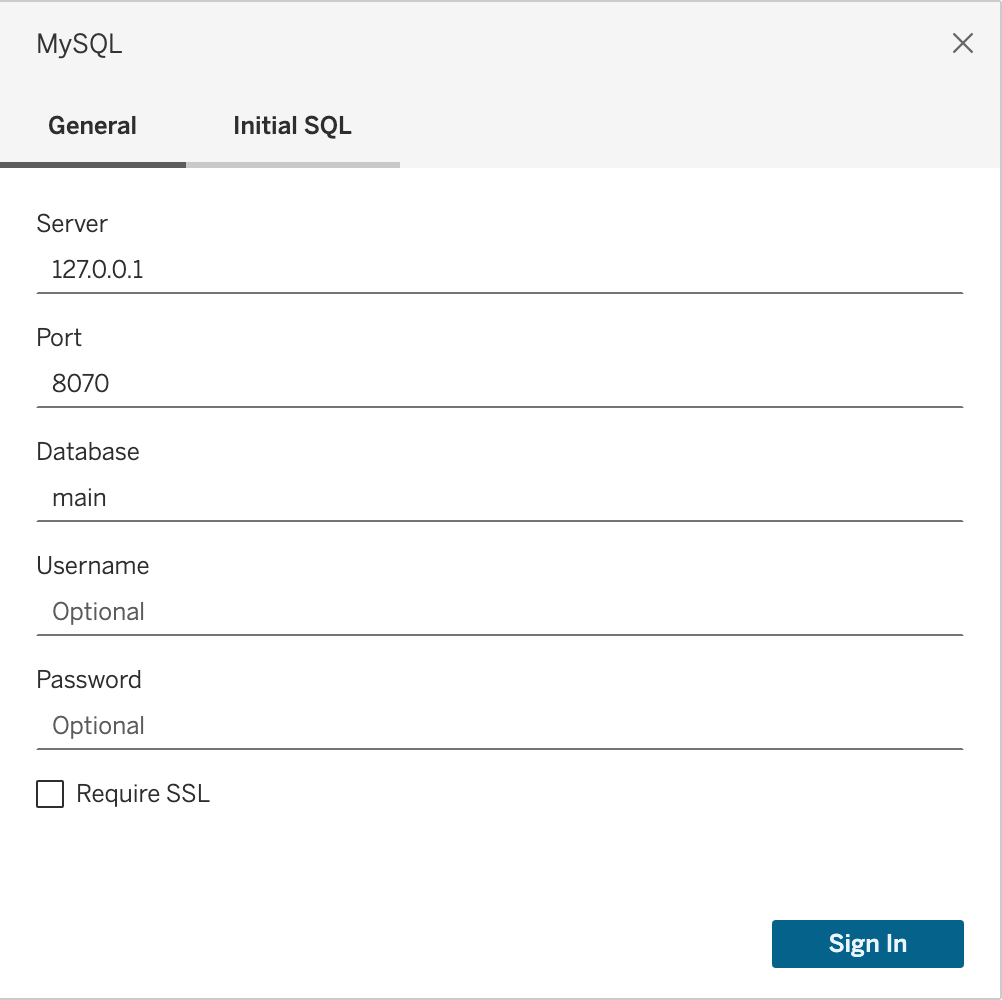
Click on the Sign In button to verify that the connection is successful.
Running your first visualization
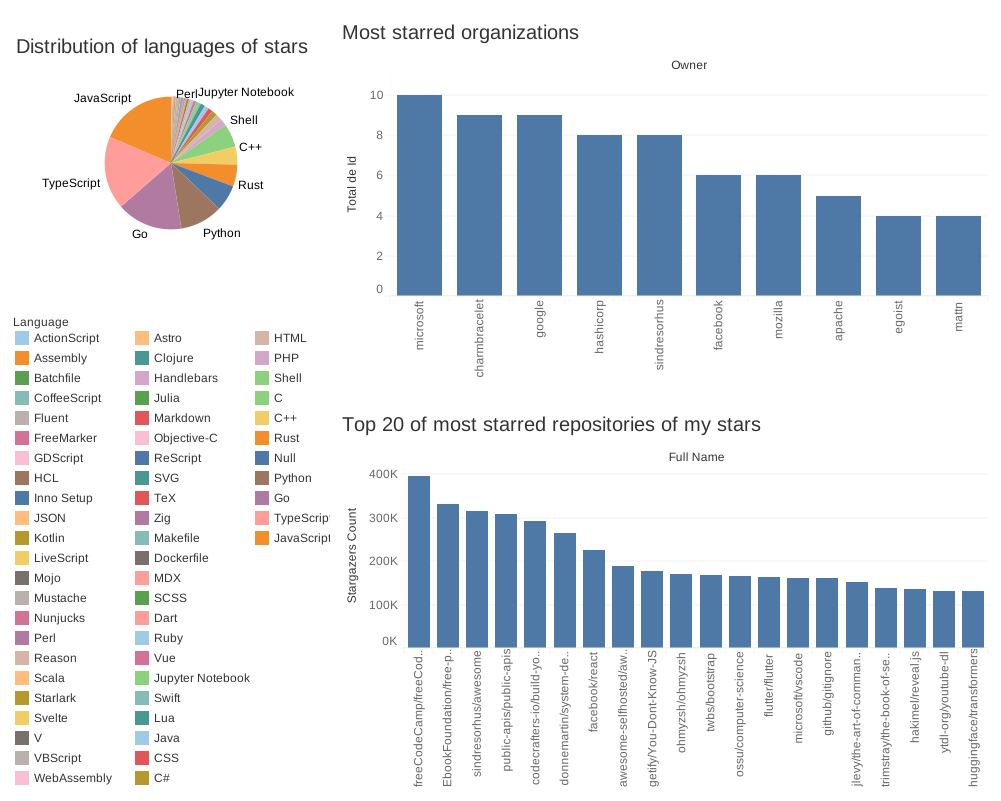
Section titled “Running your first visualization”On the left sidebar, you can see the list of tables. Drag and drop a table to the canvas to create a new worksheet. Fill in the columns and rows to create your visualization.
As an example, here is a breakdown of my GitHub stars:
Conclusion
Section titled “Conclusion”You have successfully connected Tableau to Anyquery. Now you can create interactive dashboards and share them with your team.